At the top of the Community Page, you'll see profile pictures of members in circles. Here's what you need to know:

Green border: A green stroke around a member's picture indicates they are online.
Click on Profile: Click on any member's profile picture to view their details.
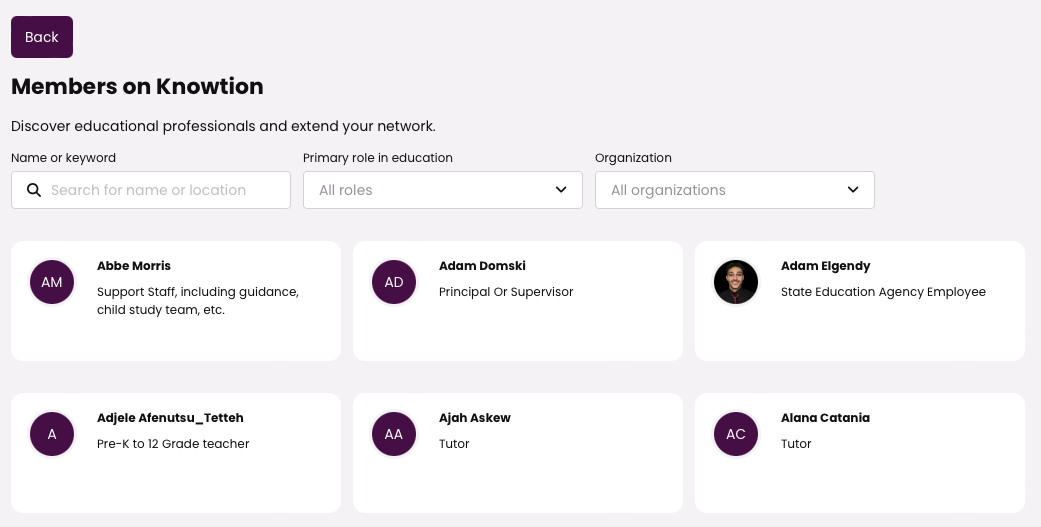
Click on show all: Click on show all and see all the Knowtion members, you can use filters for example name or keyword, primary role and organization.
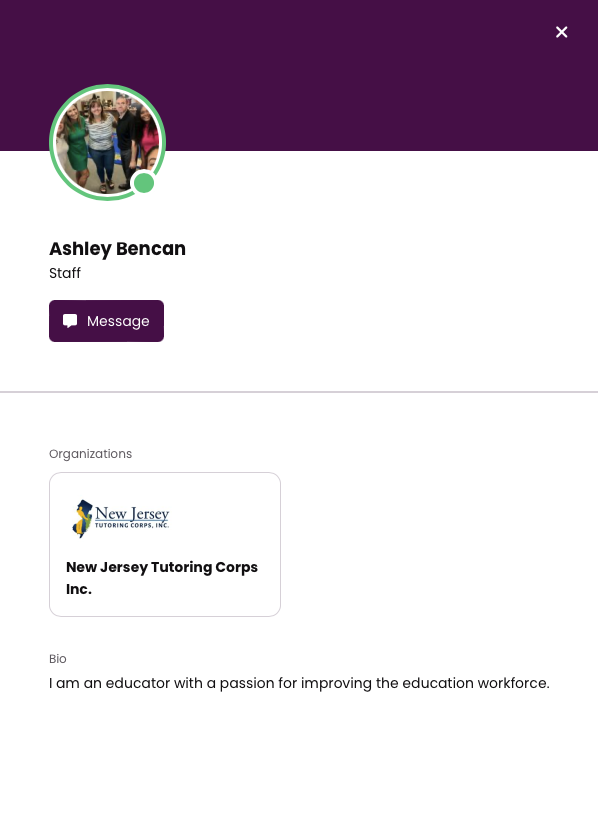
When you click on a member's profile picture, you will see:
Profile Picture: A larger view of their profile picture.
Bio: A brief biography of the member.
Organization: The organization they belong to.
Private Message: An option to send a private message to the member.